How to Pair a Phone With SYNC 2?
Pairing is what allows Bluetooth-enabled devices to communicate with each other securely. This process establishes a secure Bluetooth connection between your phone and the vehicle.
Key Features and Functionality
Data Synchronization: Once paired, SYNC 2 can download your phone book and contact photos, enabling integrated voice commands. Please note that feature availability may vary depending on your specific phone model.
Contact Management: If duplicate entries are found, the system organizes them into a candidates list. This allows you to select the correct contact easily using either the touchscreen or voice commands (e.g., "Line 1").
Seamless Connectivity: After the initial pairing, SYNC 2 will automatically recognize and reconnect to your phone whenever it is within range.
Efficiency and Storage
Smart Indexing: To ensure a fast connection, the system stores your phone book and text messages. Instead of downloading all the data every time you enter the car, it only scans for and updates recent changes.
Text Messaging: The system only displays and stores text messages received while you are in the vehicle. It cannot synchronize or access your phone’s prior message history.
Data Privacy: Any information accessed from your phone is only available and visible when the device is physically present in the vehicle.
System Capacity
Multiple Devices: Ford SYNC 2 can store pairing profiles for up to 12 different phones, making it easy for multiple drivers to use the system.
If you require further assistance with the pairing process, please consult your owner’s manual or contact your local Ford dealer.
Phone Pairing Instructions
Before beginning the pairing process, please ensure the following requirements are met:
Device Compatibility: Verify that your smartphone is compatible with SYNCTM and that Bluetooth® is enabled in your phone's settings.
Vehicle Status: The vehicle must be in Park (P) with the engine running. Please do not attempt to pair your device while the vehicle is in Accessory Mode, as this may interrupt the process.
Note: Regarding PIN entry: Some smartphones utilize a four-digit Personal Identification Number (PIN) and may be unable to accept the standard six-digit PIN generated by SYNCTM. If your device requires a four-digit PIN, please follow the alternate instructions provided in Step 4 of the pairing sequence.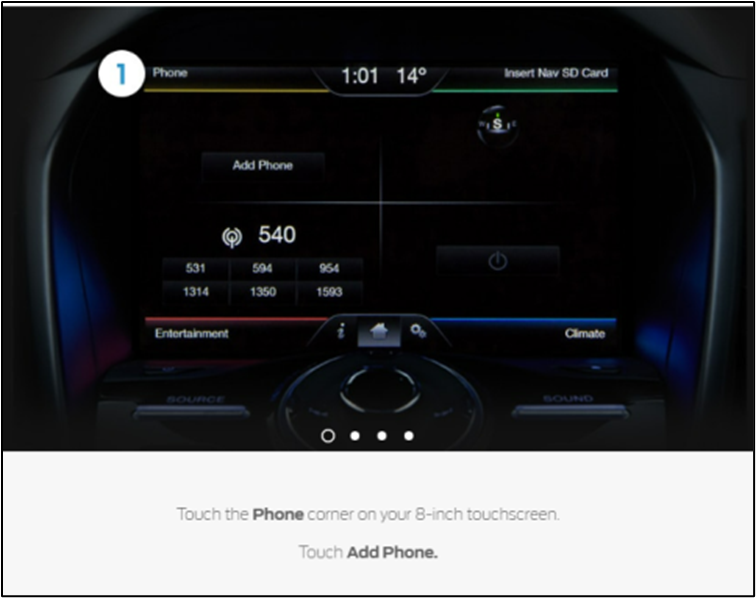
Touch the Phone corner on your 8-inch touchscreen. Touch Add Phone.

Pairing Smartphones Requiring a Four-Digit PIN
If your smartphone utilizes a four-digit PIN rather than the standard six-digit code, please use the following procedure:
Initiate Alternate Pairing: When the six-digit PIN appears on the vehicle screen, select Find Other.
Select Your Device: When the Select Device to Add menu appears, select your phone’s name from the list.
Create a PIN: SYNCTM will prompt you to enter a four-digit PIN on the vehicle touchscreen. Enter any four-digit code of your choice and press Enter.
Confirm on Your Phone: Your smartphone will then prompt you to enter a PIN. Input the same four-digit code you just entered on the touchscreen and press OK. If your phone asks for permission to always accept this connection request in the future, select Yes.
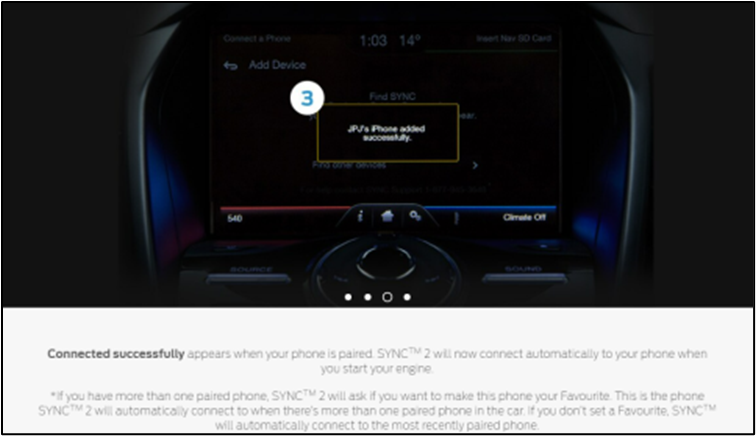
Once the pairing process is complete, a Connected successfully message will appear on the display. Moving forward, SYNCTM 2 will automatically reconnect to your phone whenever you start the engine.
Managing Multiple Devices: If you have paired more than one device, the system will ask if you would like to designate the current phone as your Favorite.
Priority Connection: The favorite phone is the device SYNCTM 2 will prioritize for automatic connection if multiple paired phones are detected in the vehicle at the same time.
Default Connection: If no device is set as a Favorite, the system will automatically connect to the phone that was most recently used or paired.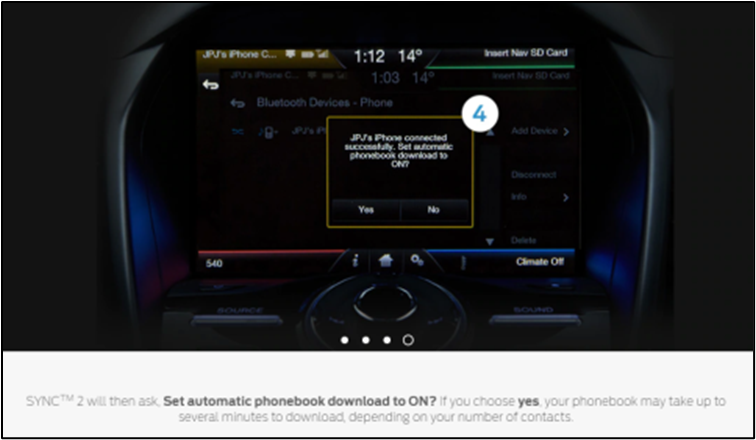
Phone book Synchronization
Following the pairing process, SYNCTM will prompt you to enable the Automatic Phone book Download feature:
If you select Yes, the system will begin transferring your contacts to the vehicle. Please note that the initial synchronization may take several minutes to complete, depending on the total number of entries in your phone book.